In today’s digital-first economy, banking is no longer about long branch visits — it’s about getting things done in just a few clicks. Karur Vysya Bank (KVB), one of India’s oldest private sector banks (founded in 1916), has built a robust and highly secure internet banking platform that empowers retail and corporate customers to handle nearly every banking task online. From transferring funds and paying bills to opening fixed deposits, applying for loans, and managing investments, you can do it all from the comfort of your home or office.
What sets KVB Net Banking apart is its Double Factor Authentication — a sophisticated security system that combines a personal 4-digit PIN with a random number generated by an RSA token. This “something you know and something you have” model provides one of the strongest layers of protection among Indian banks. Recently, KVB also migrated its internet banking portal to a more secure domain — https://inb.kvb.bank.in (with the main banking site at https://www.kvb.bank.in) — replacing the older .co.in URL.
This comprehensive guide walks you through every step of logging into KVB Net Banking, registering as a new user, and resetting your credentials.
What Is KVB Net Banking?
KVB Net Banking is the bank’s secure online platform that gives all customers — resident and non-resident Indians, Hindu Undivided Families, partnership firms, and corporates — round-the-clock access to their accounts. Through this portal, you can transfer funds within KVB or to other banks via NEFT, RTGS, and IMPS, pay utility bills and credit card dues, open or close fixed and recurring deposits, request chequebooks, generate e-statements, and access dozens of other services from a single dashboard.
The service is completely free for KVB account holders and is protected by the bank’s signature Double Factor Authentication system. KVB Net Banking uses a dual-credential model — a separate Login Password (with RSA PIN + token code) for accessing the portal and a Transaction PIN (TPIN) for authorising fund transfers. Joint account holders should note that only the primary account holder can initiate financial transactions, with consent from all other holders.
How to Login to KVB Net Banking
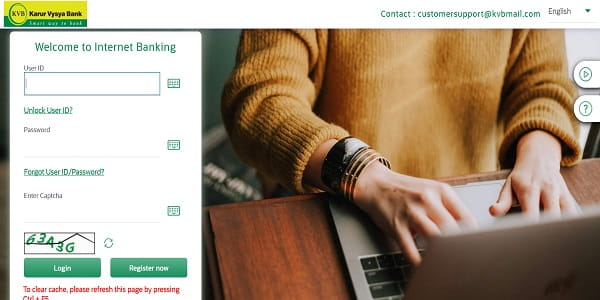
KVB’s login process is unique due to its RSA-based two-factor authentication. Here’s the step-by-step guide:
Step 1: Open your browser and visit the official portal at https://inb.kvb.bank.in.
Step 2: Click on “Continue to Login” and accept the terms and conditions.
Step 3: Enter your User ID in the designated field.
Step 4: Enter your RSA Passcode, which is a combination of:
- Your 4-digit RSA PIN (set during your first login)
- The random number generated by your physical RSA crypto token, OR the digital OTP from your registered mobile/email if you don’t have a physical token
Step 5: Enter your Login Password carefully. Use the on-screen virtual keyboard for added safety against keyloggers.
Step 6: Click “Login” to access your dashboard.
The RSA passcode is valid only for 60 seconds, after which a fresh code must be generated. This time-bound mechanism makes phishing nearly impossible. If you wish to obtain a physical crypto token instead of using digital OTPs, you can request one by contacting the helpline number 1860-258-1916.
New User Registration: Step-by-Step Process
If you’re new to KVB Net Banking, you can register entirely online — no branch visit required — provided you have an active debit card.
Online Registration Process
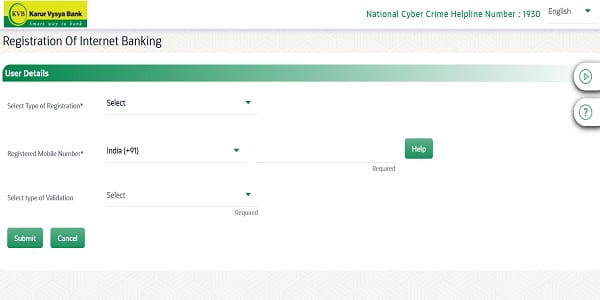
Step 1: Visit https://inb.kvb.bank.in and click on “New User” or “Register Now”.
Step 2: Read and accept the terms and conditions on the next screen.
Step 3: Choose your registration type — select either “Customer ID” or “Savings Account Number” as your identifier.
Step 4: Enter your Customer ID or Account Number along with your Registered Mobile Number.
Step 5: Validate your identity by entering your Debit Card Number, Expiry Date, and ATM PIN.
Step 6: An OTP will be sent to your registered mobile number. Enter it for verification.
Step 7: Set your User ID and a temporary Login Password.
Step 8: Once submitted, you’ll receive a confirmation email from the bank with instructions to change your default password. Log in to the portal and change your temporary password to fully activate your account.
Branch-Based Registration
If you don’t have an active debit card, you must visit your nearest KVB branch and submit an application form. Alternatively, you can:
- Call the helpline at 1860-258-1916 to request credentials, which will be sent to your registered postal address within five working days.
- Email activateiuser@kvbmail.com from your registered email to receive credentials within five working days.
If you forget your User ID, you can also send an SMS in the format KVBUSER XXXX (where XXXX is your Customer ID) to 56161 or 9244770000, or give a missed call to 08882101234 to retrieve your Customer ID first.
How to Reset Your KVB Net Banking Password and TPIN
KVB allows you to reset both your Login Password and Transaction PIN online through self-service methods.
Reset Login Password
Step 1: On the login page at https://inb.kvb.bank.in, click on the “Forgot/Reset Password” link.
Step 2: Enter your Customer ID (if unknown, give a missed call to 08882101234 from your registered mobile number to retrieve it).
Step 3: Authenticate yourself by answering your pre-set security questions that you configured during registration.
Step 4: Enter the OTP sent to your registered mobile number.
Step 5: Set your new Login Password, ensuring it follows the bank’s complexity rules (combination of uppercase letters, lowercase letters, numbers, and special characters).
Step 6: Confirm and submit. Once successful, you can log in immediately with your new credentials.
If you haven’t set security questions in your profile, you can contact the helpdesk at 1860-258-1916 or email activateiuser@kvbmail.com to request a new password by post within five working days.
Reset Transaction PIN (TPIN)
The TPIN is a separate credential used to authorise fund transfers. To reset it:
- Log in to your KVB Net Banking account using your User ID and password.
- Navigate to the “Profile” or “Customer Service” section.
- Select “Reset Transaction PIN” and answer your security questions.
- Set your new TPIN, confirm it, and submit.
Unlock Your User ID
If your User ID gets locked due to repeated failed login attempts, you can unlock it without visiting a branch:
- SMS Method: Send an SMS in the format KVBNET <USERID> UNLOCK to 9643739643, 9643999643, or 56161 from your registered mobile number.
- Online Method: On the login page, click “Unlock User ID”, answer your secret question, and authenticate using TPIN and OTP, or RSA passcode.
- IVR Method: Call the helpline and unlock your account through the IVR system.
Important Security Tips
While KVB’s RSA-based Double Factor Authentication is among the most secure banking systems in India, your habits play an equally important role in keeping your account safe. Always log in only through the official URL — https://inb.kvb.bank.in — by typing it directly into your browser. Verify the HTTPS prefix and padlock symbol before entering credentials.
Avoid using public Wi-Fi or shared computers for net banking. Make a habit of changing your Login Password and TPIN periodically — KVB recommends doing this regularly to maintain account security. Always log out completely after every session, and never save your credentials in your browser.
Never share your User ID, Login Password, RSA PIN, TPIN, OTP, ATM PIN, or RSA token codes with anyone — including individuals claiming to be KVB officials. The bank will never ask for these details via phone, SMS, or email.
For technical assistance and general queries, call KVB’s helpline at 1860-258-1916 (local charges apply). International customers can dial +91-44-66217600. To report unauthorised or suspicious transactions, use the dedicated toll-free number 1800-572-1916. For any digital fraud, immediately report the incident to the National Cyber Crime Helpline at 1930, and you can also reach the RBI Contact Centre at 14448. For email queries, write to customersupport@kvbmail.com, and for WhatsApp Banking, message +91-9176994444.
For mobile banking, KVB offers two apps — KVB DLite and KVB e-book — both available on Google Play Store and Apple App Store.
Final Thoughts
KVB Net Banking has carved out a distinctive position in India’s digital banking landscape with its RSA-based Double Factor Authentication, dual-credential system (Login Password + TPIN), and a wide range of self-service options for registration, password reset, and account unlocking. Combined with its recent migration to the secure inb.kvb.bank.in domain, the platform balances strong security with user-friendly accessibility.
Whether you’re logging in for the first time, registering as a new user, or recovering a forgotten password, the process is designed to be self-service and beginner-friendly. By following the steps in this guide and staying mindful of basic cyber hygiene, you can fully harness the convenience of KVB Net Banking — managing your money anytime, anywhere, without ever needing to wait in a branch queue again.