In an age where banking has shifted decisively from queues at the branch to a few taps on a screen, Punjab National Bank (PNB) — one of India’s oldest and most trusted public sector banks — has built a robust internet banking platform to keep pace with modern needs. PNB Net Banking gives customers round-the-clock access to their accounts, allowing them to transfer funds, pay bills, manage deposits, and handle dozens of other financial tasks without ever stepping into a branch.
Recently, PNB migrated its internet banking portal to a new domain — https://ibanking.pnb.bank.in — replacing the older netpnb.com address. For many users, especially first-timers, the process of logging in, registering as a new user, or recovering a forgotten password can feel a little intimidating. This guide walks you through every step clearly so you can use PNB Net Banking with confidence.
What Is PNB Net Banking?
PNB Net Banking, also known as PNB Internet Banking Service (IBS), is the bank’s digital platform that lets account holders perform almost every banking activity online. From checking your balance and downloading statements to opening fixed deposits, transferring money via NEFT, RTGS, or IMPS, paying utility bills, requesting a chequebook, and managing standing instructions — it’s all available through a secure, user-friendly portal accessible at https://ibanking.pnb.bank.in.
The service is free for all PNB savings and current account holders, and it works seamlessly on both desktop browsers and mobile devices. The portal also offers value-added features such as Sovereign Gold Bond purchases, GSTIN and PAN registration, demat account linking, and the PNB Suraksha scheme to prevent fraudulent cheque payments.
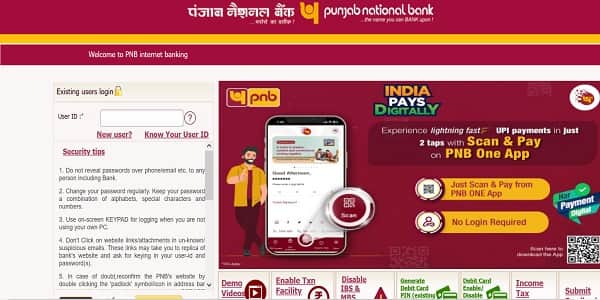
How to Login to PNB Net Banking
Once you’ve registered for the service, logging in is straightforward. Here’s the step-by-step process for retail customers:
Step 1: Open your preferred web browser and visit the official PNB Net Banking website at https://ibanking.pnb.bank.in.
Step 2: Click on the “Retail Internet Banking” option if you’re an individual customer, or choose “Corporate Internet Banking” if you operate a business account.
Step 3: Enter your User ID (which is the same as your Customer ID provided by the bank) and click “Continue”.
Step 4: On the next screen, type in your login password carefully. Remember, the password is case-sensitive. For added safety, consider using the on-screen virtual keyboard if you’re on a shared or public computer.
Step 5: Click the “Login” button to proceed.
Step 6: During first-time login or for added security, PNB may send a One-Time Password (OTP) to your registered mobile number. Enter the OTP in the prompted field to access your account dashboard.
For corporate users, the login process additionally requires the Corporate ID along with the User ID and password.
Once logged in, you’ll see your account summary, recent transactions, and a navigation menu giving you access to every feature the platform offers.
New User Registration: Step-by-Step Process
If you’ve never used PNB Net Banking before, you’ll need to register first. PNB offers two registration methods for retail customers — online self-registration (for those with a debit card) and branch-based registration. Corporate customers must register only through the branch.
Online Registration Process for Retail Users
Step 1: Visit https://ibanking.pnb.bank.in and click on the “New User” option below the login fields.
Step 2: Enter your Account Number and select the Registration Type — choose “Register for Internet Banking”.
Step 3: Choose the Type of Facility you require — view-only access or both view and transaction rights.
Step 4: An OTP will be sent to your registered mobile number. Enter it and click “Continue” to verify your identity.
Step 5: Next, enter your Debit Card number and ATM PIN. This step authenticates you as the rightful account holder.
Step 6: Set your login password and transaction password. Choose strong passwords containing a combination of uppercase letters, lowercase letters, numbers, and special characters.
Step 7: Once submitted, your registration is complete. The system will display your User ID — note it down carefully, as you’ll need it every time you log in. You can typically log in immediately, though full transaction access may take 24 to 48 hours to activate.
Branch-Based Registration
If you don’t have a debit card, you can visit your home branch, fill out the PNB-1063 (Retail) form, and submit it to a bank official. You can also request registration through any PNB ATM or by calling the bank’s toll-free numbers (1800-180-2222 / 1800-103-2222). Within a few working days, you’ll receive your User ID and a sealed password kit. Corporate customers need to download and submit the PNB-1212 form at the branch to receive their Corporate ID, Administrator ID, and password.
How to Reset Your PNB Net Banking Password
Forgetting passwords happens to everyone. Fortunately, PNB makes the reset process simple and secure.
Step 1: Visit the PNB Net Banking login page at https://ibanking.pnb.bank.in and enter your User ID.
Step 2: Click on the “Forgot Password” link.
Step 3: Enter your registered mobile number linked to your account and submit.
Step 4: Choose the verification method — most users authenticate using their debit card details (card number, expiry date, and ATM PIN).
Step 5: An OTP will be sent to your registered mobile number. Enter it in the field provided.
Step 6: Once verified, you’ll be prompted to create a new password. Make sure it differs from your previous password and meets the strength requirements.
Step 7: Confirm the new password and click “Submit”. You can now log in using your fresh credentials.
If you don’t have access to your debit card or registered mobile number, you’ll need to visit the nearest PNB branch with valid identification to request a password reset manually.
Important Security Tips
While PNB employs strong encryption and multi-factor authentication, the safety of your account also depends on your habits. Always log in only through the official website, https://ibanking.pnb.bank.in, and never click suspicious links claiming to be from PNB. Avoid using public Wi-Fi for banking, change your passwords periodically, and use the on-screen keypad when accessing your account from a non-personal device.
Never share your User ID, password, OTP, or ATM PIN with anyone — including people who claim to be bank officials. PNB will never ask for these details over the phone or email. If you encounter any suspicious activity or need assistance, you can contact PNB customer care at the toll-free numbers 1800-180-2222 or 1800-103-2222, available 24×7.
Final Thoughts
PNB Net Banking has transformed the way millions of Indians manage their finances, offering a convenient, secure, and feature-rich alternative to traditional banking. With the migration to the new portal at https://ibanking.pnb.bank.in, the experience has become even more streamlined and modern.
Whether you’re logging in for the first time, registering as a new user, or recovering a forgotten password, the process is designed to be user-friendly while keeping your account protected. By following the steps outlined above and staying mindful of basic security practices, you can make the most of PNB’s digital banking experience and handle your financial needs anytime, anywhere — without ever needing to wait in a branch queue again.