In today’s digital-first economy, banking has shifted from branch counters to browser tabs — and Tamilnad Mercantile Bank (TMB), one of India’s oldest private sector banks (founded in 1921 as Nadar Bank and rebranded to TMB in 1962), has built a robust internet banking platform to keep pace with this shift. Headquartered in Thoothukudi, Tamil Nadu, TMB offers retail and corporate customers 24×7 access to a comprehensive suite of digital banking services through its TMB eConnect platform. Whether you want to transfer funds, pay bills, manage deposits, pay GST or EPF, or apply for loans, you can do it all from the comfort of your home or office.
What Is TMB eConnect?
TMB eConnect is Tamilnad Mercantile Bank’s secure online banking platform that gives all customers — savings, current, and deposit account holders — round-the-clock access to their accounts. Through this portal, you can transfer funds within TMB or to other banks via NEFT, RTGS, IMPS, and UPI, pay utility bills, make GST and EPF payments, open or close fixed and recurring deposits, request chequebooks, generate e-statements, perform balance enquiries, place stop-payment requests, and access dozens of other services from a single dashboard.
The service is completely free for all TMB account holders. The platform is protected by OTP-based two-factor authentication and a Virtual Keyboard for password entry to defend against keyloggers. TMB uses a dual-credential system — a separate Login Password (Sign-on Password) for accessing the portal and a Transaction Password for authorising fund transfers.
How to Login to TMB Net Banking
Once you’ve registered for the service, logging in is straightforward. Here’s the step-by-step process:
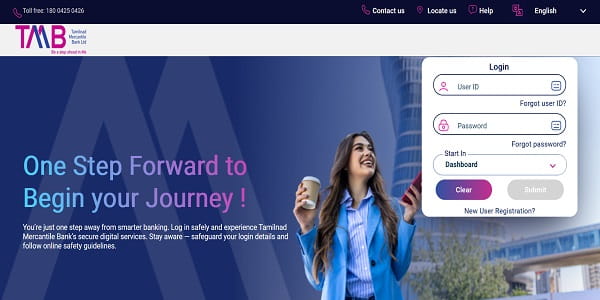
Step 1: Open your browser and visit the official TMB internet banking portal at https://ib.tmbonline.bank.in.
Step 2: On the Login panel, enter your User ID in the designated field.
Step 3: Enter your Password carefully. For added safety, click the virtual keyboard icon to type your password using on-screen keys — this protects against keyloggers, especially on shared devices.
Step 4: From the “Start In” dropdown, select your preferred landing page (e.g., Dashboard) so you land directly on that section after login.
Step 5: Click “Submit” to access your account.
Step 6: Depending on your security settings, you may be prompted for an OTP sent to your registered mobile number, especially when logging in from a new device.
If you’ve forgotten your User ID, click on “Forgot user ID?” on the login page to retrieve it. Similarly, “Forgot password?” lets you reset your password instantly. If you enter the wrong password 3 times in a row, your account will be locked and you’ll need to use the “Forgot Password” link to reset it.
New User Registration: Step-by-Step Process
TMB offers two registration methods — online self-registration (a relatively new digital onboarding feature accessible directly through the new portal) and branch-based registration (the traditional route).
Online Self-Registration
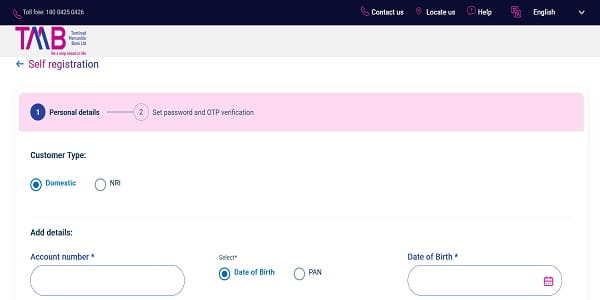
Step 1: Visit https://ib.tmbonline.bank.in and click on “New User Registration?” at the bottom of the login panel.
Step 2: On the “Self registration” page, select your Customer Type — Domestic or NRI.
Step 3: Under “Add details”, enter your Account Number in the designated field.
Step 4: Select your verification method — Date of Birth or PAN — and enter the corresponding value.
Step 5: Click “Proceed” to move to the next step.
Step 6: An OTP will be sent to your registered mobile number. Enter it for verification.
Step 7: Set your Login Password following the bank’s complexity rules — combining uppercase letters, lowercase letters, numbers, and special characters.
Step 8: Submit to complete registration. A confirmation message will appear, and you can log in immediately using your new credentials.
Branch-Based Registration
For customers who prefer the traditional approach or are registering as a corporate entity:
- Visit your nearest TMB branch with your bank details and KYC documents.
- Request the eConnect Application Form and fill it in completely. Make sure to mention your registered mobile number accurately, as this will be used for all future OTPs.
- Submit the form along with proof documents to the branch officer.
- Once your application is processed, the bank will issue your User ID and password through registered post or your registered email.
- Log in to the portal and change the default password during your first login.
How to Reset Your TMB Net Banking Password
Forgotten passwords happen to everyone. TMB allows you to reset both your Login Password and Transaction Password online without visiting a branch.
Reset Forgotten Login Password (Sign-on Password)
Step 1: On the login page at https://ib.tmbonline.bank.in, click on “Forgot password?”.
Step 2: Select “Green PIN” option and click “Continue”.
Step 3: Enter your User ID and either your Date of Birth or PAN Number, then click “Continue”.
Step 4: An OTP will be sent to your registered mobile number. Enter the OTP and click “Continue”.
Step 5: Your new Sign-on Password will be generated and sent to your registered email ID as a password-protected PDF document.
Step 6: Open the PDF using the appropriate password format:
- If you chose Date of Birth verification: First 4 letters of User ID (uppercase) + Date of Birth (DDMM format) + last 3 digits of mobile number
- If you chose PAN verification: First 4 letters of User ID (uppercase) + First 4 letters of PAN (uppercase) + last 3 digits of mobile number
Example: If your User ID is GOKULAMC09, PAN is XXXXX1111X, and mobile number is 9999999909, your PDF password would be GOKUXXXX909.
Step 7: Use the password from the PDF to log in, and you’ll be prompted to set a new password of your choice.
Reset Transaction Password
Step 1: Log in to your TMB eConnect account using your User ID and Sign-on Password.
Step 2: Select “Reset Txn Password” option from the menu bar.
Step 3: An OTP will be generated and sent to your registered mobile number. Enter the OTP and click “Continue”.
Step 4: A new Transaction Password will be generated and sent to your registered email as a password-protected PDF document. The PDF password follows the same format — First 4 letters of User ID (uppercase) + Date of Birth (DDMM format) + last 3 digits of mobile number.
Step 5: Open the PDF, use the temporary Transaction Password to log in, and reset it by entering your new password of choice.
Step 6: A success message — “Transaction password changed successfully” — will be displayed.
Account Locked Due to Wrong Password
If your account gets locked due to entering the wrong Login Password 3 times continuously, use the “Forgot Password” link to reset it. If your Transaction Password is locked due to 3 wrong attempts, you can reset it using the “Reset Txn Password” option after logging in.
Important Security Tips
While TMB’s eConnect platform is built on robust security infrastructure, your habits play an equally important role in keeping your account safe. Always log in only through the official URL — https://ib.tmbonline.bank.in — by typing it directly into your browser. Verify the HTTPS prefix and padlock symbol before entering credentials. Never click on banking links from unsolicited emails, SMS, or WhatsApp messages, as these often lead to phishing websites.
Avoid using public Wi-Fi or shared computers for net banking — use mobile data or a personal data card instead. Always use the virtual keyboard to enter your password, log out completely after every session, and never save your User ID or password in your browser. Disable the auto-fill or “remember password” feature in your browser, especially when accessing the portal from a non-personal device.
Never share your User ID, passwords, OTP, ATM PIN, or PDF passwords with anyone — including individuals claiming to be TMB officials. The bank will never ask for these details via phone, SMS, or email.
For technical assistance, you can contact TMB customer care:
- 24×7 Toll-Free Helpline: 1800-0425-0426
- Alternate Number: 9842-461-461
- Branch Direct Lines: 0461-2383325, 0461-2383326, 0461-2383327
- Email: econnect@tmbank.in (specifically for net banking issues)
- CKYC Missed Call Number: 7799-022-129
For any digital fraud or suspicious activity, immediately report the incident to econnect@tmbank.in and call the National Cyber Crime Helpline at 1930. To update your registered mobile number or email ID, you must visit your home branch and submit a written request — these cannot be updated online for security reasons.
Final Thoughts
TMB eConnect stands out among Indian private sector bank platforms for its secure dual-password system with PDF-based credential delivery — a unique mechanism where new passwords are sent as encrypted PDF documents to your registered email, ensuring an extra layer of security against unauthorised access. Combined with the new self-registration option for both Domestic and NRI customers, the platform balances strong security with modern convenience.
With the recent migration to the secure tmb.bank.in and ib.tmbonline.bank.in domains, Tamilnad Mercantile Bank continues to align with modern security standards while honouring its century-old legacy of trust. Whether you’re logging in for the first time, registering as a new user, or recovering forgotten credentials, the process is designed to be self-service and beginner-friendly.
By following the steps outlined in this guide and staying mindful of basic cyber hygiene, you can fully harness the convenience of TMB Net Banking — managing your money anytime, anywhere, without ever needing to wait in a branch queue again.