In today’s digital-first economy, banking has shifted from branch counters to browser tabs — and YES Bank, one of India’s leading private sector banks, has built a feature-rich internet banking platform called YES Online to keep pace with this shift. The platform offers retail and corporate customers 24×7 access to a comprehensive suite of digital banking services. Whether you want to transfer funds, pay bills, manage deposits, invest in mutual funds, apply for loans, or oversee your demat account, you can do it all from the comfort of your home or office.
Recently, YES Bank migrated its internet banking portal to a new, more secure domain — https://yesonline.yes.bank.in — replacing the older yesonline.yesbank.co.in URL. The corporate website is now hosted at https://www.yes.bank.in. To get started, you’ll need your Customer ID (mentioned in your welcome letter, on your chequebook, or in your account statement), along with an active Debit Card, Credit Card, Loan Account, or Aadhaar/Personal Information for verification.
This comprehensive guide walks you through every step of using YES Online with confidence.
What Is YES Online?
YES Online is YES Bank’s secure internet banking platform that gives all customers — retail and corporate — round-the-clock access to their accounts. Through this portal, you can transfer funds within YES Bank or to other banks via NEFT, RTGS, and IMPS, pay utility bills and credit card dues, set up standing instructions, open or manage fixed and recurring deposits, request chequebooks, invest in mutual funds, manage your demat account, generate e-statements, hotlist debit/credit cards, and access dozens of other services from a single dashboard.
The service is completely free for all YES Bank account holders. The platform is protected by strong encryption, two-factor authentication via OTP, and a virtual keyboard to defeat keyloggers. YES Bank also offers four flexible registration options to suit customers’ needs — using a Debit Card, Credit Card, Loan Account, or via branch-issued credentials.
How to Login to YES Online
Once you’ve registered for the service, logging in is straightforward. Here’s the step-by-step process:
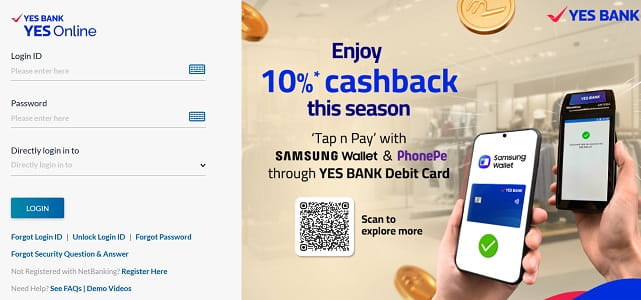
Step 1: Open your browser and visit the official YES Online portal at https://yesonline.yes.bank.in. Always type the URL directly into the address bar.
Step 2: Enter your Login ID in the designated field.
Step 3: Enter your Password carefully. For added safety, click the virtual keyboard icon to type your password using on-screen keys — this protects against keyloggers, especially on shared devices.
Step 4: Choose your preferred destination from the “Directly login in to” dropdown, which lets you land directly on a specific section of your dashboard.
Step 5: Click “Login” to access your account.
Step 6: As a second factor, you may be prompted to enter an OTP sent to your registered mobile number, especially if logging in from a new device.
If you’ve forgotten your Login ID, click the “Forgot Login ID” link on the login page. If you can’t recall your password or your account is locked, click on “Forgot Password / Unlock Login ID”. There’s also a separate “Forgot Security Question & Answer” link for retrieving lost security details.
New User Registration: Step-by-Step Process
YES Bank offers four flexible online registration options, plus a branch-based path for those without applicable cards or accounts.
Register Using a Debit Card
Step 1: Visit https://yesonline.yes.bank.in and click on the “Register Here” link below the login fields.
Step 2: Read the instructions in the pop-up, accept the Terms and Conditions, and click “Proceed”.
Step 3: Select “Debit Card” as your registration method.
Step 4: Enter your Customer ID, Debit Card Number, and ATM PIN.
Step 5: Create your NetBanking Password following the bank’s complexity rules and click “Next”.
Step 6: An OTP will be sent to your registered mobile number. Enter it for verification.
Step 7: Once the OTP is validated, your registration is complete and you can log in immediately.
Register Using a Credit Card
Step 1: On the registration page, select “Credit Card” as your registration method.
Step 2: Enter your YES Bank Credit Card number, Date of Birth, and Expiry Date. Note: only the Primary Credit Card is accepted for registration.
Step 3: Create a Login ID and Password of your choice and click “Next”.
Step 4: Enter the OTP received on your registered mobile number to complete the process.
Register Using a Loan Account
Step 1: On the registration page, select “Loan Account” as your registration method.
Step 2: Enter your Customer ID, Loan Account Number, and Date of Birth.
Step 3: Create your Login ID and Password, then click “Next”.
Step 4: Validate using the OTP sent to your registered mobile number to complete the registration.
Register Without a Card (Branch Method)
If you don’t have an active Debit Card, Credit Card, or Loan Account:
- Download and fill out the Channel Registration Form from https://www.yes.bank.in under the Forms Centre.
- Submit the completed form to your nearest YES Bank branch.
- The bank will mail your Customer ID and NetBanking Password to your registered postal address.
- Once received, log in to https://yesonline.yes.bank.in with these credentials and immediately change your password as per the bank’s policy.
After your first login, you’ll also be prompted to set up security questions and answers, which will be useful for future password recovery.
How to Reset Your YES Online Password
Forgotten passwords happen to everyone. YES Bank allows you to reset your password instantly online using multiple authentication methods.
Reset Forgotten Password
Step 1: On the login page at https://yesonline.yes.bank.in, click on the “Forgot Password” link.
Step 2: Read the on-screen guidelines about password reset eligibility — this facility is only available for customers already registered for YES Online. Accept the Terms & Conditions and click “Proceed”.
Step 3: From the dropdown menu, choose your preferred identification method:
- Debit Card — enter card number, expiry, and ATM PIN
- Credit Card — enter your Primary Credit Card details (only Primary Credit Card is accepted)
- Loan Account — enter loan account details with your DOB
- Aadhaar / Personal Information — verify using your Aadhaar number or other personal details
Step 4: Enter the necessary details based on your selected method and submit.
Step 5: An OTP will be sent to your registered mobile number for verification.
Step 6: Set your new password following the bank’s strength rules and confirm it.
Step 7: Submit to finalise the change. You can now log in with your new credentials.
If you’re unable to reset your password online — for example, if your mobile number isn’t updated — you can place a request for password reset by visiting your nearest YES Bank branch.
Important Security Tips
While YES Bank’s digital infrastructure is protected by strong encryption and multi-factor authentication, your habits play an equally important role in keeping your account safe. Always log in only through the official URL — https://yesonline.yes.bank.in — by typing it directly into your browser. Never click on banking links from unsolicited emails, SMS, or WhatsApp messages, as these often lead to phishing websites.
Always use the virtual keyboard to enter your password, especially on shared or public devices. Make a habit of logging out completely after every session, and avoid using public Wi-Fi for financial transactions. Never save your User ID or password in your browser.
Never share your Customer ID, Login ID, NetBanking Password, OTP, ATM PIN, CVV, or security question answers with anyone — including individuals claiming to be YES Bank officials. The bank will never ask for these details via phone, SMS, or email.
For any technical assistance, you can call YES Bank’s customer care:
- 24×7 Customer Care: 1800-1200 (toll-free)
- General Helpline: 1800-103-1212 (toll-free)
- For Credit Cards: 1800-103-6000 (toll-free)
- International Customers: +91-22-4935-0000
- Chargeable Number: 1860-210-1200
- WhatsApp Banking: +91-829-120-1200
- Email: yestouch@yesbank.in
For any digital fraud or suspicious activity, immediately report the incident to the National Cyber Crime Helpline at 1930. You can also block your card via SMS by sending BLKCC <Last 4 digits of Card> to 9840909000 from your registered mobile number.
For mobile banking, YES Bank offers the IRIS by YES BANK mobile app, which can be downloaded from Google Play Store and Apple App Store, providing a complementary suite of services including instant card management, payments, and UPI integration.
Final Thoughts
YES Bank’s YES Online platform stands out in India’s digital banking landscape with its four flexible registration options — Debit Card, Credit Card, Loan Account, or branch-based — making it accessible to a wide range of customers regardless of which YES Bank product they hold. Combined with multiple password reset methods, virtual keyboard security, and 24×7 customer support, the platform balances strong security with effortless usability.
With the recent migration to the secure yesonline.yes.bank.in domain, YES Bank continues to align with modern security standards. Whether you’re logging in for the first time, registering as a new user, or recovering a forgotten password, the process is designed to be self-service and beginner-friendly. By following the steps outlined in this guide and staying mindful of basic cyber hygiene, you can fully harness the convenience of YES Online — managing your money anytime, anywhere, without ever needing to wait in a branch queue again.