In today’s digital-first economy, banking is no longer about waiting in queues — it’s about getting things done in just a few clicks. Canara Bank, one of India’s largest and oldest public sector banks, has built a comprehensive internet banking platform that empowers its retail and corporate customers to handle nearly every banking task online. From transferring funds and paying bills to opening fixed deposits and applying for loans, Canara Bank Net Banking puts your finances at your fingertips, around the clock.
For first-time users, however, the registration and login process can feel a little unfamiliar — especially because Canara Bank uses a separate Login Password for accessing the portal and a Transaction Password for authorising fund transfers. Before you start, ensure you have your Account Number, Customer ID (printed on your passbook or chequebook), an active Debit Card, and your Registered Mobile Number ready.
This comprehensive guide walks you through every step clearly so you can use Canara Bank Net Banking with confidence, all through the official portal at https://online.canarabank.bank.in.
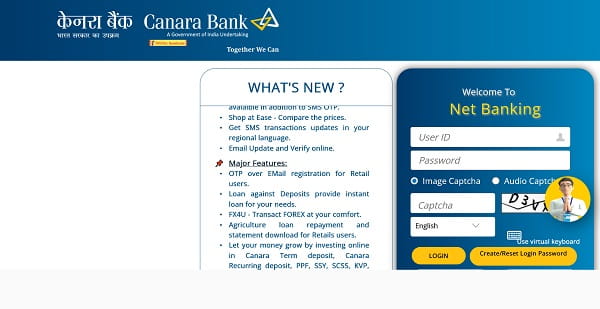
What Is Canara Bank Net Banking?
Canara Bank Net Banking is the bank’s secure online platform that gives customers 24×7 access to their accounts. Through this portal, you can transfer funds within Canara Bank or to other banks via NEFT, RTGS, and IMPS, pay utility and credit card bills, open or close fixed and recurring deposits, request chequebooks, hotlist debit/credit cards, generate e-statements, and access many other services from a single dashboard.
The service is completely free for all Canara Bank account holders and works seamlessly across desktops, laptops, and mobile browsers. Customers also have access to the Canara ai1 super app for mobile banking and a unique Canara Offline OTP app that generates OTPs even without network connectivity — particularly useful for NRI customers and frequent travellers.
How to Login to Canara Bank Net Banking
Once you’ve registered for the service, logging in is straightforward. Here’s the step-by-step process:
Step 1: Open your browser and visit the official Canara Bank Net Banking portal at https://online.canarabank.bank.in.
Step 2: Enter your User ID in the designated field. Your User ID is provided by the bank at the time of registration — in many cases, it’s the same as your Customer ID, but you may have personalised it.
Step 3: Enter your Login Password carefully. Remember, the password is case-sensitive.
Step 4: Type the CAPTCHA characters shown in the image box to confirm you’re not a bot.
Step 5: Choose your preferred language — English or Hindi — and click “Login”.
Step 6: If logging in from a new device or for added security, you may be prompted to enter an OTP sent to your registered mobile number.
A note of caution: entering the wrong password three times in a row will lock your User ID. If that happens, you can use the “Unlock User ID” option on the login page to regain access by verifying your details.
New User Registration: Step-by-Step Process
If you’re new to Canara Bank Net Banking, you can register entirely online — no branch visit required — provided you have an active debit card and your mobile number is registered with the bank.
Online Registration Process
Step 1: Visit https://online.canarabank.bank.in and click on the “New User Registration” option.
Step 2: Read the Terms and Conditions carefully and click “I Agree” to proceed.
Step 3: Enter your Account Number, Customer ID, Registered Mobile Number, and a few other identification details as prompted.
Step 4: Choose “Debit Card” as your authentication method. Enter your Debit Card Number, Expiry Date, and ATM PIN for validation.
Step 5: An OTP will be sent to your registered mobile number. Enter it to verify your identity.
Step 6: Set your Login Password following the bank’s complexity rules — combine uppercase letters, lowercase letters, numbers, and special characters for a strong password.
Step 7: Confirm the password and submit. Your registration is complete, and you can now log in immediately using your User ID and new password.
Branch-Based Registration
If you don’t have an active debit card, you can collect the net banking registration form from any Canara Bank branch (or download it from the official website), fill it out, and submit it at your home branch. The bank will process your application and dispatch your User ID and password to your registered mailing address within a few working days.
How to Reset Your Canara Bank Net Banking Password
Forgotten passwords happen to everyone. Canara Bank makes the reset process completely online and instant.
Reset Login Password
Step 1: On the login page at https://online.canarabank.bank.in, click on the “Create/Reset Login Password” option.
Step 2: Enter your User ID and Date of Birth for identity verification.
Step 3: Choose one of the following ID types to authenticate:
- Aadhaar Number
- PAN Number
- Passport Number
- Debit Card Details
Step 4: Enter the corresponding ID number and your Account Number in the fields provided.
Step 5: Set your new password and re-enter it to confirm. Make sure it meets the bank’s strength requirements.
Step 6: Enter the CAPTCHA and click “Submit”. An OTP will be sent to your registered mobile number — enter it to authorise the change.
Step 7: Once verified, your password will be updated immediately, and you can log in with your new credentials.
Setting or Resetting the Transaction Password
Unlike many banks that use only a single login credential, Canara Bank requires a separate Transaction Password to authorise fund transfers and other sensitive operations. To generate or reset it:
- Log in to your net banking account using your User ID and Login Password.
- Navigate to “Profile” → “Generate/Reset Transaction Password”.
- Follow the on-screen prompts and authenticate using OTP. Set a new Transaction Password — for security reasons, it must be different from your Login Password.
Important Security Tips
While Canara Bank employs strong encryption and multi-factor authentication, your habits play an equally important role in keeping your account safe. Always log in only through the official URL — https://online.canarabank.bank.in — and verify the HTTPS prefix and padlock symbol in your browser before entering credentials. Avoid using public Wi-Fi for banking and change your passwords periodically.
If you don’t receive an SMS OTP — perhaps because you’re travelling abroad or in a low-network area — you can use Canara Bank’s Canara Offline OTP app, a dedicated mobile application that generates a 9-digit OTP without requiring a mobile network. The facility must be activated once through net banking under “Pay & Transfer → Offline OTP” before use.
Never share your User ID, Login Password, Transaction Password, OTP, or ATM PIN with anyone — including individuals claiming to be Canara Bank officials. The bank will never ask for these details via phone, SMS, or email. For any technical assistance or to report suspicious activity, you can call Canara Bank’s 24×7 toll-free helpline at 1800-1030 or 1800-425-0018, or email queries to hocss1@canarabank.com.
Final Thoughts
Canara Bank Net Banking has redefined how millions of Indians manage their finances, offering a secure, feature-rich, and convenient alternative to traditional branch banking. Its dual-password system — separating login access from transaction authorisation — adds an extra layer of protection that makes it especially safe for online use. Combined with innovative features like the Canara Offline OTP app, the platform is built for both convenience and security.
Whether you’re logging in for the first time, registering as a new user, or recovering a forgotten password, the process is designed to be self-service and beginner-friendly. By following the steps in this guide and staying mindful of basic cyber hygiene, you can fully harness the convenience of Canara Bank Net Banking — managing your money anytime, anywhere, without ever needing to wait in a branch queue again.