In an era where banking convenience is measured in clicks rather than queues, Indian Overseas Bank (IOB) — one of India’s oldest and most respected public sector banks — has built a secure and reliable internet banking platform to serve its retail and corporate customers. IOB Net Banking allows account holders to transfer funds, pay bills, manage deposits, apply for loans, and access a wide range of services around the clock without ever stepping into a branch.
For first-time users, however, the registration and login process can feel a bit unfamiliar — particularly because IOB uses a separate Login Password and Transaction PIN system. This comprehensive guide walks you through every step clearly so you can use IOB Net Banking with confidence, all through the official portal at https://netbanking.iob.bank.in (also accessible at https://www.iobnet.co.in).
What Is IOB Net Banking?
IOB Net Banking is the bank’s secure online platform that gives customers 24×7 access to their accounts. Through this portal, you can transfer money within IOB or to other banks via NEFT, RTGS, and IMPS, pay utility bills, open or close fixed and recurring deposits, apply for loans, request chequebooks, and download account statements. The platform is also equipped with PKI (Public Key Infrastructure) — one of the world’s most secure encryption technologies — to protect both individual and corporate transactions.
The service is free for all IOB account holders and works seamlessly across desktops, laptops, and mobile browsers. A unique feature of IOB Net Banking is its dual-credential system: a Login Password to access the portal and a separate Transaction PIN to authorise fund transfers.
How to Login to IOB Net Banking
Once you’ve registered for the service, logging in is quick and simple. Here’s the step-by-step process:
Step 1: Open your browser and visit the official IOB Net Banking portal at https://netbanking.iob.bank.in.
Step 2: Click on “Individual Login” for personal accounts, or “Corporate Login” if you operate a business account.
Step 3: Enter your Login ID and Password in the respective fields. Remember, both are case-sensitive — “B” and “b” are treated differently.
Step 4: Use the Virtual Keyboard displayed on the screen to enter your password. This protects you against keyloggers, especially when accessing your account from a shared or public computer.
Step 5: Enter the CAPTCHA code shown on the screen to confirm you’re not a bot.
Step 6: Click “Login” to access your account dashboard.
A word of caution: entering the wrong password three times in a row will block your online account, and you’ll need to reset it before logging in again.
New User Registration: Step-by-Step Process
If you’ve never used IOB Net Banking before, you’ll need to register first. IOB offers two registration methods — online self-registration (using your Debit Card) and branch-based activation.
Self-Registration Process (Online)
Step 1: Visit https://netbanking.iob.bank.in and under the “Personal Login” section, click on “Register”.
Step 2: Enter your basic details — your 15-digit Account Number, Email ID, Country, and Registered Mobile Number.
Step 3: Create your Login ID and Login Password of your choice. Choose a strong password with a mix of uppercase letters, lowercase letters, numbers, and special characters.
Step 4: Submit the details. If you’re eligible for self-activation, you’ll be given the option to “Self-Activate using Debit Card” or “Activate through Branch”. Choose self-activation for instant approval.
Step 5: Enter your Debit Card Number, Expiry Date, and ATM PIN for validation. An OTP will then be sent to your registered mobile number.
Step 6: Enter the OTP to verify your identity. On successful verification, your internet banking will be approved.
Step 7: Wait approximately one hour before logging in for the first time, as the system needs time to activate your credentials.
Branch-Based Activation
If you’re not eligible for self-activation or don’t have a debit card, choose the “Activation through Branch” option. After OTP verification, an internet banking branch approval form will be downloaded — print it, sign it, and submit it at your home branch. Once processed, you’ll receive an SMS confirming your activation, typically within 7 to 10 working days.
Important note: By default, self-registration provides only “View Only” rights. To enable fund transfers, after logging in, navigate to “Edit Profile” → “Change Fund Transfer” to activate the facility. You’ll also need to generate a Transaction PIN under “Edit Profile → Forgot PIN/Generate PIN” before making any transfers.
How to Reset Your IOB Net Banking Password
Forgotten passwords happen to everyone. Fortunately, IOB makes the reset process straightforward.
Reset Login Password
Step 1: On the login page at https://netbanking.iob.bank.in, click the “Forgot Password” link.
Step 2: Enter your Login ID, 15-digit Account Number, and Registered Email ID for identity verification.
Step 3: Choose your preferred authentication method — typically OTP-based verification.
Step 4: Enter the OTP received on your registered mobile number.
Step 5: Set your new Login Password. Make sure it’s different from your last few passwords and contains a mix of uppercase letters, lowercase letters, numbers, and special characters.
Step 6: Confirm the new password and submit. You can now log in with your fresh credentials.
Reset Transaction PIN
Since fund transfers require a separate 6-digit Transaction PIN, here’s how to reset it:
Step 1: Log into your IOB Net Banking account using your Login ID and password.
Step 2: Navigate to “Edit Profile” → “Forgot PIN / Generate PIN”.
Step 3: Follow the on-screen prompts to verify your identity using OTP and debit card details.
Step 4: Set a new 6-digit Transaction PIN, confirm it, and submit. You can now use this PIN to authorise fund transfers.
You can also set or modify your daily fund transfer limit (up to ₹10 lakh) using the “Change Daily Limit” option under “Edit Profile”.
Important Security Tips
While IOB employs strong PKI-based encryption, your habits play a crucial role in keeping your account safe. Always log in only through the official portals — https://netbanking.iob.bank.in or https://www.iobnet.co.in — and verify the padlock symbol in your browser before entering credentials. Avoid using public Wi-Fi for banking, change your passwords periodically, and always use the on-screen Virtual Keyboard on shared devices.
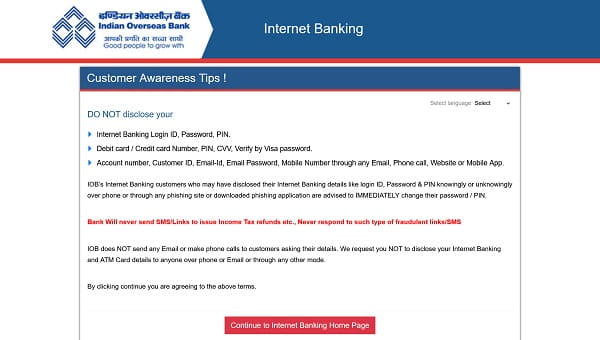
Never share your Login ID, Password, Transaction PIN, OTP, or ATM details with anyone — including individuals claiming to be IOB officials. The bank will never ask for these details via phone, SMS, or email. For any technical assistance, you can call IOB’s toll-free helpline at 1800-425-4445 or 1800-890-4445, or email eseeadmin@iobnet.co.in for internet banking-related issues.
Final Thoughts
IOB Net Banking has redefined how millions of Indians manage their finances, offering a secure, feature-rich, and convenient alternative to traditional branch banking. Its dual-credential system — separating login access from transaction authorisation — adds an extra layer of protection that makes it especially safe for online use.
Whether you’re logging in for the first time, registering as a new user, or recovering a forgotten password, the process is designed to be self-service and user-friendly. By following the steps in this guide and staying mindful of basic security practices, you can fully harness the convenience of IOB Net Banking — managing your money anytime, anywhere, without ever needing to wait in a branch queue again.