In today’s fast-paced digital economy, walking into a bank branch for routine transactions feels almost outdated. ICICI Bank — one of India’s largest private sector banks — has long been a pioneer in digital banking, offering a seamless internet banking experience that puts your finances at your fingertips. Whether you want to check your balance, transfer money, pay bills, open a fixed deposit, or apply for a loan, ICICI Net Banking lets you do it all from the comfort of your home or office.
That said, navigating the platform for the first time — or recovering access after forgetting a password — can feel a bit confusing for new users. This comprehensive guide walks you through everything you need to know about logging into ICICI Net Banking, registering as a new user, and resetting your password, all using the official portal at https://www.icici.bank.in.
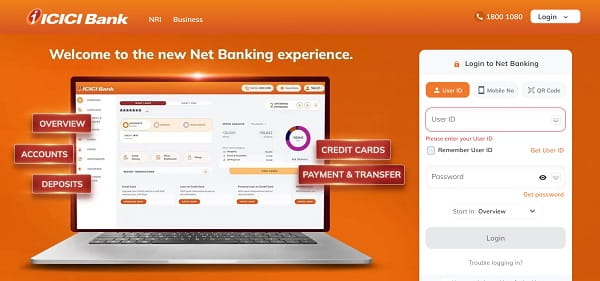
How to Login to ICICI Net Banking
Once you’ve registered for the service, logging in is quick and simple. Here’s the step-by-step process:
Step 1: Open your browser and visit the official ICICI Bank website at https://www.icici.bank.in.
Step 2: Click on the “Login” button at the top right corner and select “Personal” from the dropdown to access retail net banking. Corporate users should select “Corporate” instead.
Step 3: You’ll be redirected to the secure login page. Enter your User ID in the designated field.
Step 4: Type in your login password carefully. Remember, the password is case-sensitive. For added safety, use the on-screen virtual keyboard if you’re on a public or shared computer.
Step 5: Click the “Login” button to proceed.
Step 6: Depending on your security settings, ICICI may send a One-Time Password (OTP) to your registered mobile number for verification. Enter the OTP to access your account dashboard.
A word of caution — entering the wrong password three times in a row will automatically disable your User ID, and you’ll need to reset it before logging in again.
New User Registration: Step-by-Step Process
If you’re new to ICICI Net Banking, the good news is that you can complete the entire registration online in just a few minutes — no branch visit required, provided your mobile number is registered with the bank.
Online Registration Process
Step 1: Visit https://www.icici.bank.in and navigate to the Net Banking section under “Ways to Bank”.
Step 2: Click on “New User” or the “Register Now” option.
Step 3: Choose how you want to retrieve your User ID — typically, you’ll need to enter your registered mobile number along with either your Customer ID or account details.
Step 4: An OTP will be sent to your registered mobile number for verification. Enter it to confirm your identity.
Step 5: Once your User ID is generated, proceed to the “Generate Password” option. Authenticate yourself using your Debit Card number and ATM PIN, or by entering the values from the C, D, N grid on the back of your debit card.
Step 6: Set a strong login password that combines uppercase letters, lowercase letters, numbers, and special characters. Confirm the password and submit.
Step 7: Your registration is complete. You can log in immediately using your User ID and newly created password.
If you don’t have a debit card or your mobile number isn’t registered, you’ll need to visit your nearest ICICI Bank branch with valid identification to complete the registration process. Credit card customers can also register for net banking using their 16-digit credit card number and ATM PIN.
How to Reset Your ICICI Net Banking Password
Forgetting passwords is something we all experience. ICICI makes the reset process straightforward and secure.
Step 1: Visit https://www.icici.bank.in and click on the “Login” button, then choose “Personal”.
Step 2: On the login page, click on the “Forgot Password” or “Generate Password” link.
Step 3: Read the on-screen guidelines and click “Click Here to Proceed”.
Step 4: Enter your User ID and registered mobile number, then click “Go”.
Step 5: An OTP will be sent to your registered mobile number. Enter it along with the grid card values (C, D, N) printed on the back of your debit card.
Step 6: Once verified, you’ll be prompted to create a new password. Enter and confirm your new password, ensuring it meets the strength requirements.
Step 7: Click “Submit” to finalise the change. A confirmation message will appear, and you can log in immediately with your new credentials.
If you don’t have access to your debit card or mobile number, you can call ICICI customer care at 1800-1080, authenticate yourself through the IVR using your account number or debit card number and ATM PIN, and request a new password. The new password will be generated the same day and sent to your registered postal address within seven working days.
Important Security Tips
While ICICI’s digital infrastructure is among the most secure in the industry, your habits play a crucial role in keeping your account safe. Always log in only through the official website, https://www.icici.bank.in, and never click on links from suspicious emails or SMS messages claiming to be from the bank. Avoid using public Wi-Fi for financial transactions, change your password every 90 days, and use the on-screen keypad on shared computers.
Never share your User ID, password, OTP, ATM PIN, or grid card values with anyone — including people who claim to be ICICI Bank officials. The bank will never ask for these details over the phone, email, or SMS. If you suspect any unauthorised activity, immediately contact customer care at 1800-1080, available 24×7.
Final Thoughts
ICICI Net Banking has set the benchmark for digital banking in India, combining a wide range of services with strong security features and an intuitive interface. Whether you’re logging in for the first time, registering as a new user, or recovering a forgotten password, the process is designed to be simple, fast, and entirely self-service.
By following the steps outlined above and staying alert to basic security practices, you can fully harness the convenience of ICICI Net Banking — managing your finances anytime, anywhere, without ever needing to step into a branch.